
Use cases
Workstations stay put.
Your work goes with you.
Set up Mac minis or Windows PCs in a home in the United States.
Keep working from the device at hand, wherever you settle in.
Multiple workstations
Several computers.
One remote studio.
Set up multiple Mac minis in a home in the United States. Windows PCs work too. Give each machine a role: running Claude Code, developing, testing or building. Add them to Bitseed and choose a workstation and session from the device you have with you.
Each machine runs its own tasks. Switch among them from one workspace.
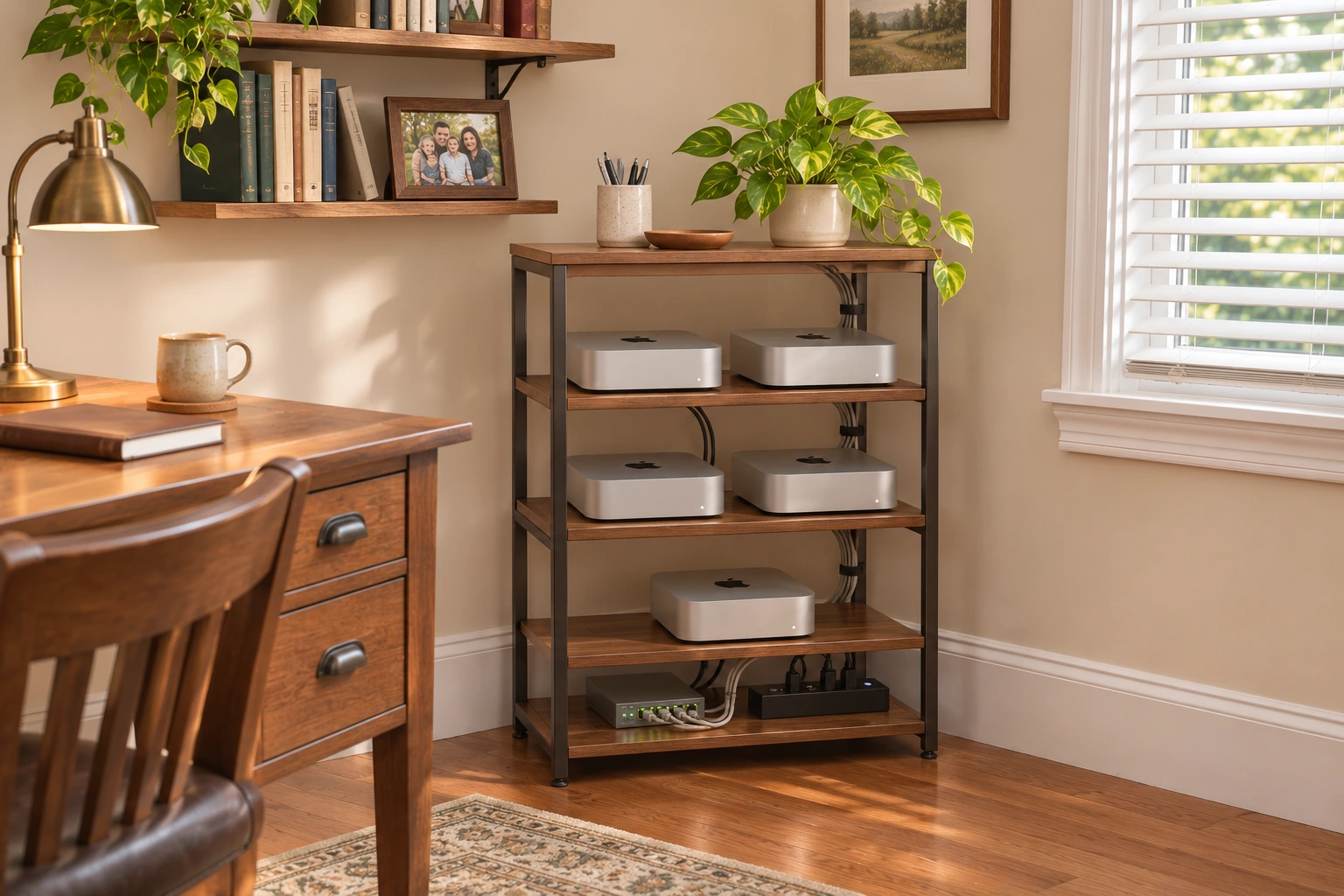
Workstations must stay on, connected and available. Cross-region performance depends on your network. Bitseed does not automatically schedule or synchronize AI tasks.
At home · Laptop or tablet
Work at your desk.
Keep going from the sofa.
Open your workstation’s terminal on your laptop and keep refining the project. Switch to a tablet to read output and add instructions in the same session without rebuilding your CLI environment.
Use a supported native client for remote web previews or switch to remote desktop when you need to work with windows.
Resume the same terminal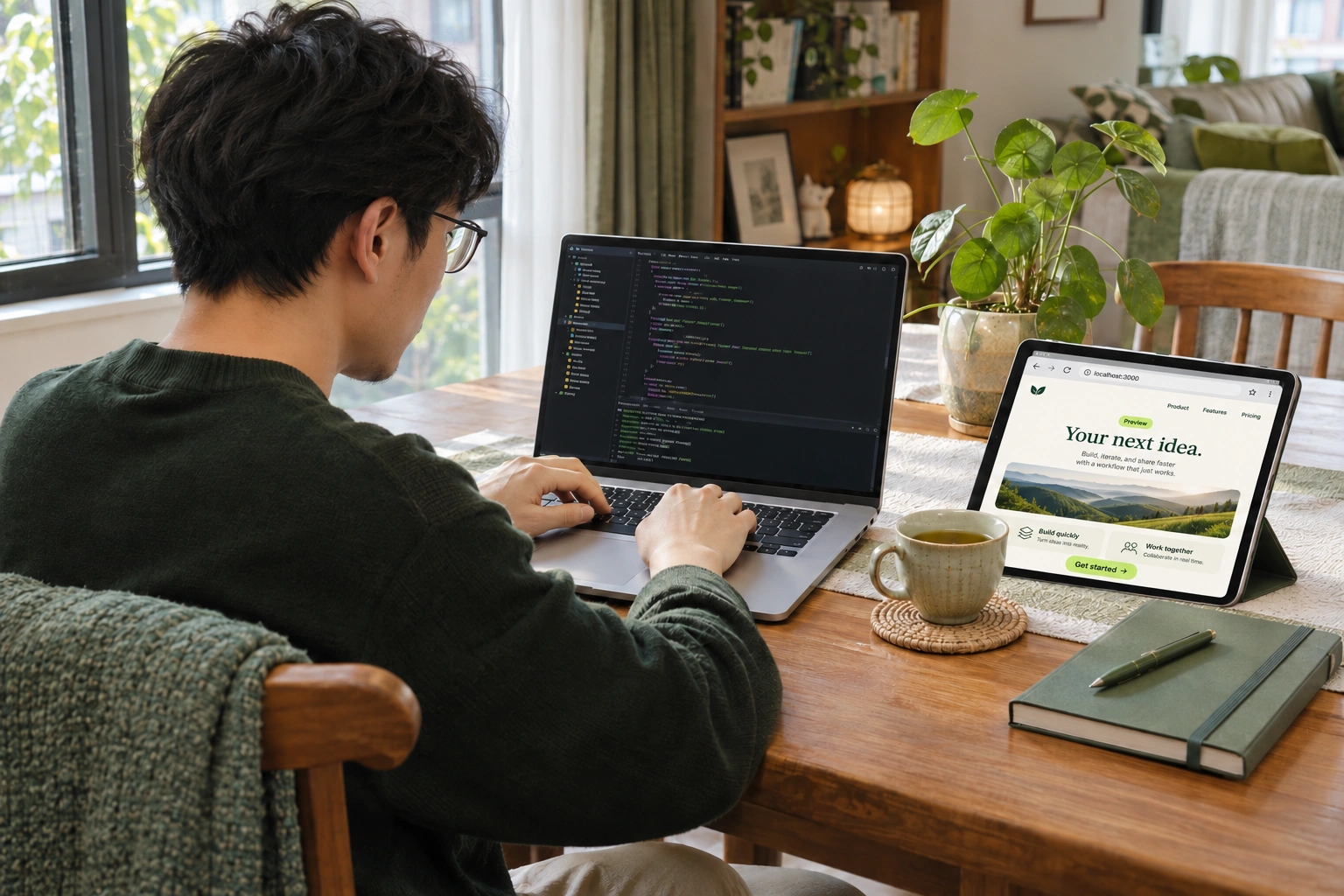
At the office · Laptop or desktop
A different desk.
The same workspace.
Sign in to Bitseed on an approved office computer. Connect to your remote workstation, check earlier output and continue the session you started.
Develop on one computer and check builds on another. Open terminal, desktop or files from the workspace.
Manage multiple workstations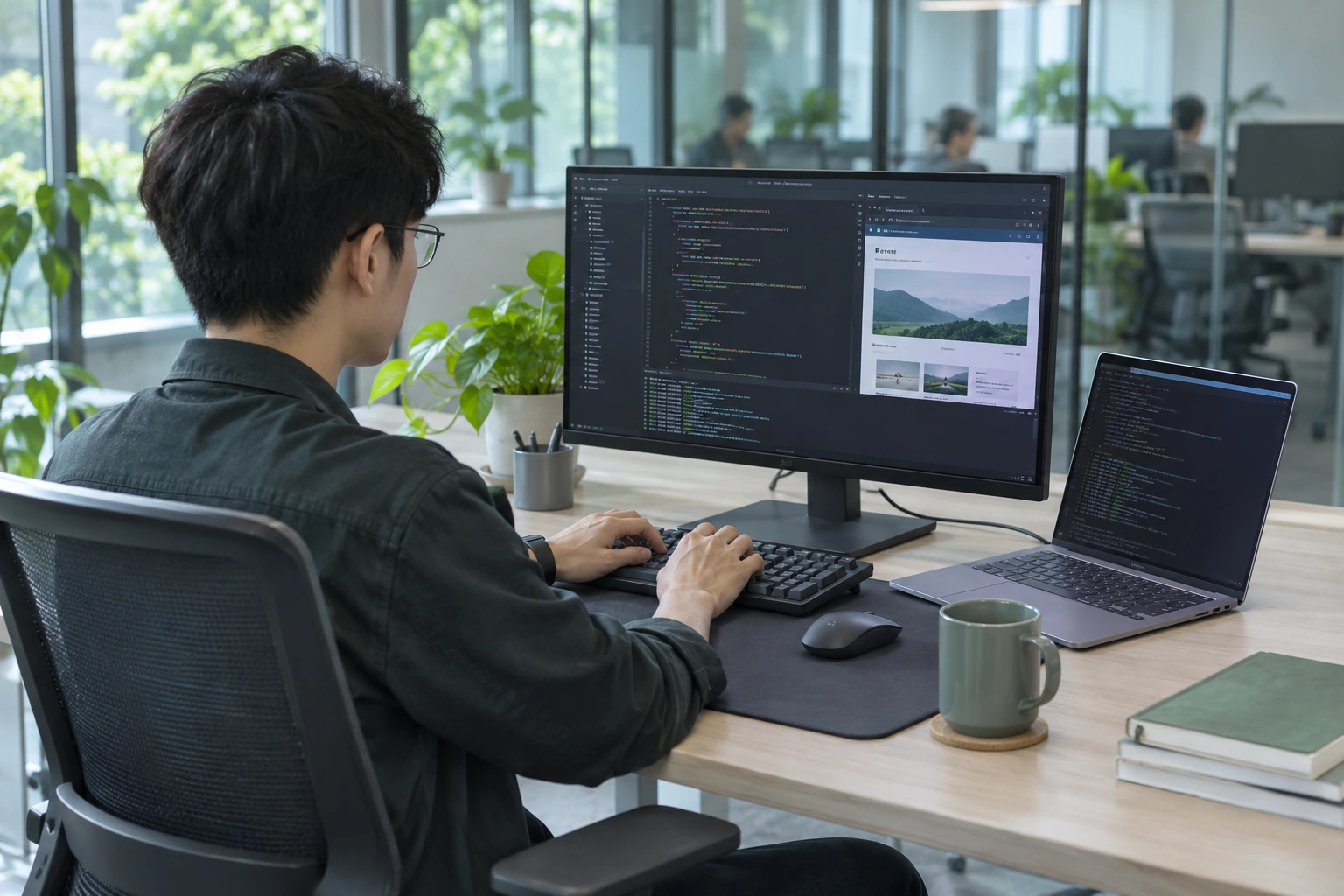
Out and about · Foldable phone
Take a seat. Unfold.
Pick up your train of thought.
At a café, unfold your phone to read Claude Code’s output and give it the next instruction. A roomier screen and desktop-style keys give you space to do more than glance at progress.
Send a reference image to the workstation and explain what should change. A regular phone can also check results or answer a follow-up.
Explore foldable productivity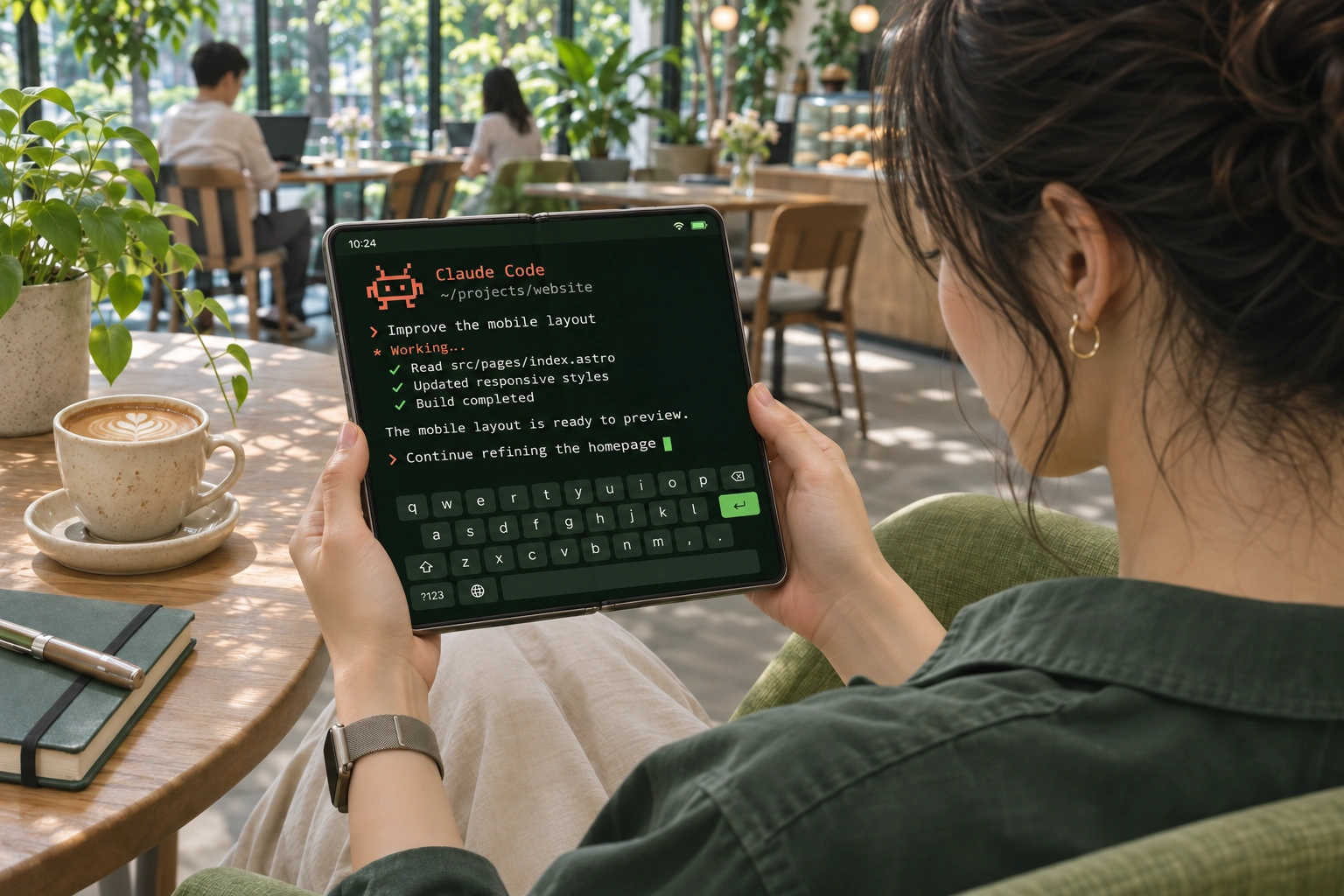
In the car · Compatible browser while parked
Park the car.
Pick up a small task.
While parked, open the web terminal in a compatible in-car browser. Scan and confirm sign-in, select your workstation and continue an existing session.
Check progress or answer a question. Claude Code keeps running on the original computer, so you don’t have to install it in the car.
Open web terminal ↗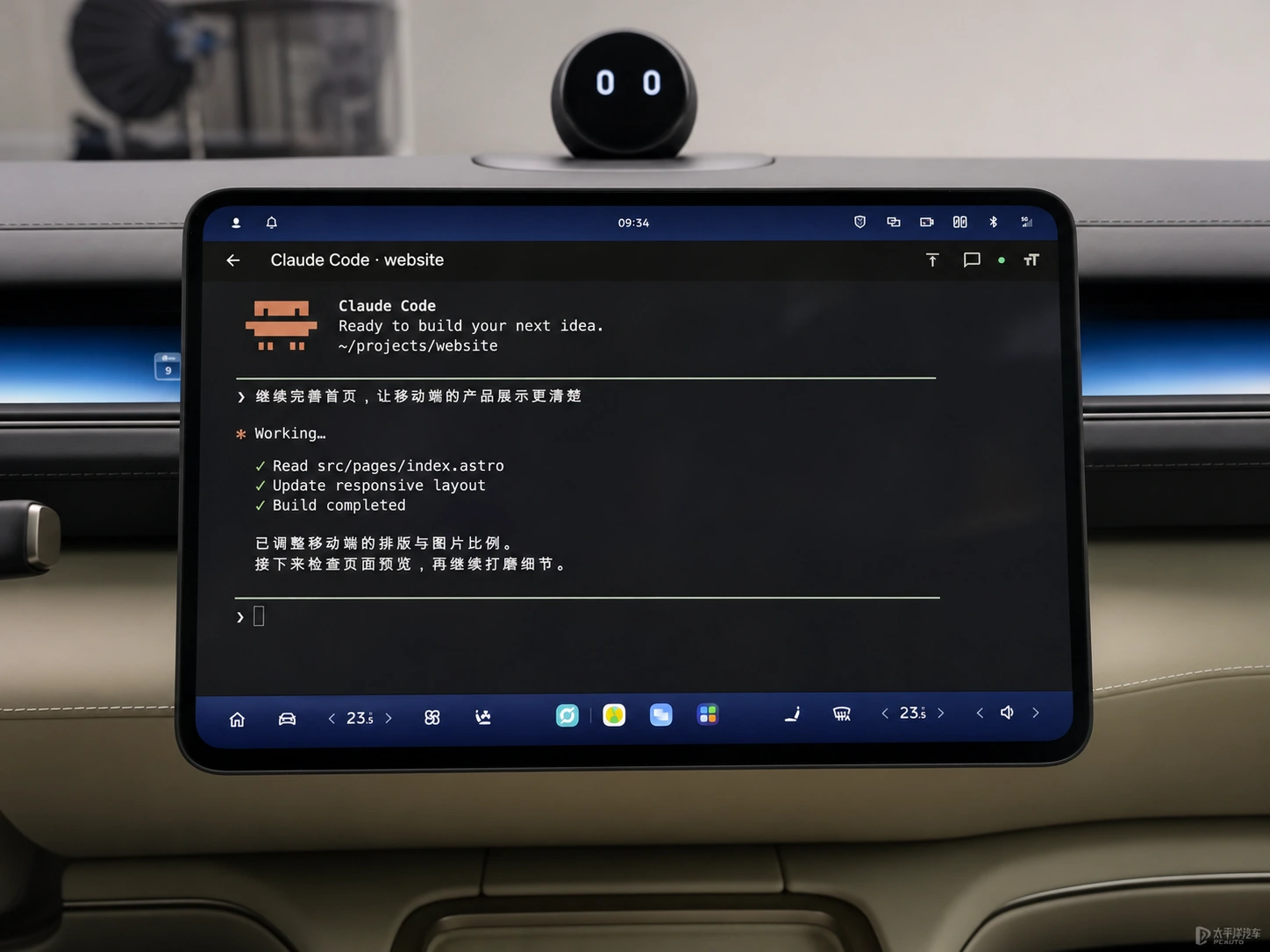
Change places.
Continue the same work.
Drag files into a terminal, remote desktop or Transfer Hub. Move between home, office, foldable and car display without starting over.
What do these setups need?
Keep your workstation online and authorize access. Native clients are available for macOS, Windows and Android. iOS is coming soon; check tablet or browser compatibility. The browser is for shared terminal access, while remote desktop and web previews require a supported native client. In-car use requires a compatible browser and input while parked; Bitseed is not a CarPlay or Android Auto app. File transfers require the source computer to be online and may use the public internet or a relay.
Remote AI development
starts here.
Pick up your AI coding session and move files between your own devices with a drag and drop.